
Pages
Get help quickly or share tips in our support forums or contact us by email: support@edicy.com
Pages
- How do I reorganise my pages?
- How do I add a new page to my site?
- How do I add a subpage?
- How do I remove a page from my site?
- How do I change the name (title) of my page?
- How do I change the layout type of my page?
- How do I hide/display a page in the menu?
- How do I create a password protected page on my site ?
- How do I add users to view password protected page on my site?
- How do I change the description of my page
How do I reorganise my pages?
You can reorganise your pages in "Site Structure" ("Settings" → "Structure") by adding, editing, deleting and dragging pages into the order of your choice.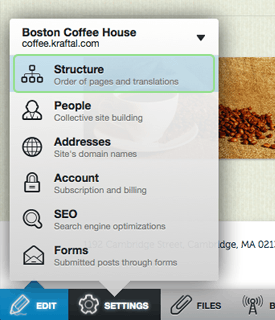
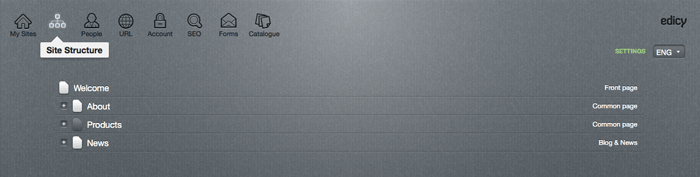
How do I add a new page to my site?
There are two ways to add a page. The easiest is by clicking the "+ Add" icon on your site next to your existing pages.
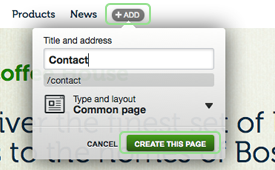
Alternatively, go to "Site Structure" ("Settings" → "Structure") and click the "+ Add new page" icon on the right side of the parent page.
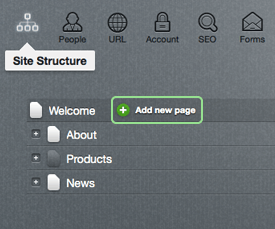
How do I add a subpage?
You can add subpages directly from the site by clicking the green "+ Add" button next to the parent page.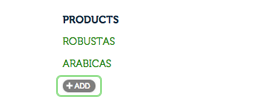
You can also use the "Site Structure" ("Settings" → "Structure"): click the "+ Add new page" icon on the right side of parent page.
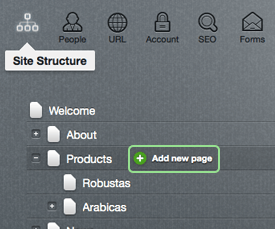
How do I remove a page from my site?
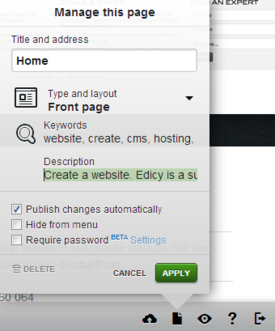
Go to "Page edit Icon" on the bottom right side on your page edit mode. To remove a page navigate down and click the small trash bin icon on the left side of the edit panel next to cancel and apply buttons. 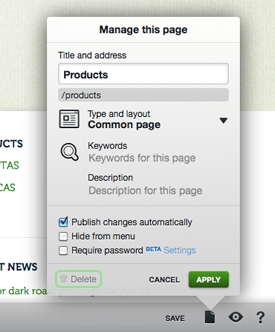
Or go to "Settings" → "Structure" → "Page" and click on the "toolbar" . This will remove the page you are currently on.
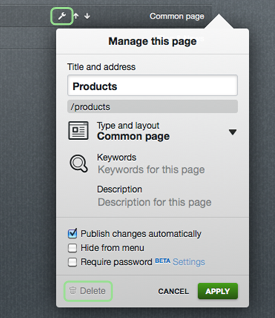
NB. You can't delete a page that has subpages.
How do I change the name (title) of my page?
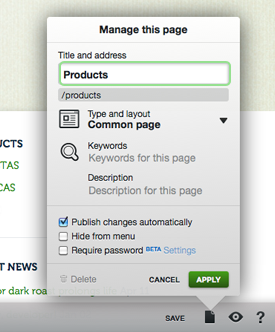
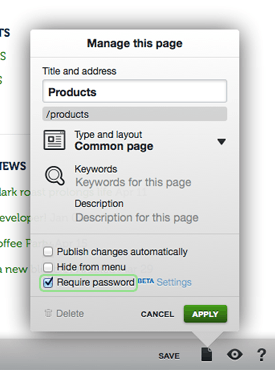
Go to "Page edit" → "Page" at the bottom of the page you want to rename. That pops up a window where you can change the name, address, layout and keywords of the page.
How do I change the layout type of my page?
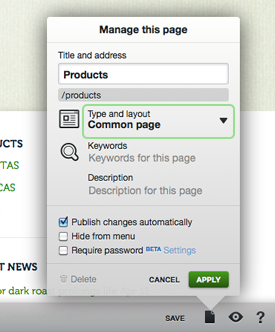
Go to "Page edit" → "Page" at the bottom of the page you want to change. In the pop-up window, find "Type and layout" and choose a new layout from the drop-down menu.
How do I hide/display a page in the menu?
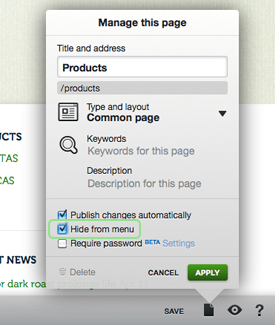
To hide/display a page from the menu, go to "Page edit" → "Page". If the box next to "Hide from menu" is checked, it won't appear in the menu. Click the box to check (hide) or uncheck (display) it. If you hide a page, you can still link to it from another page and see it in when you're editing.
How do I create password protected page on my site?
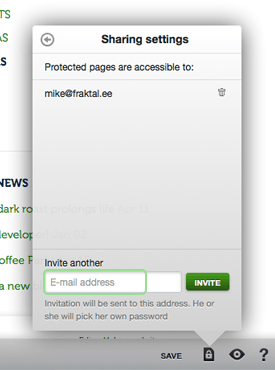
To make a page visible only to a select few, open it in the editor and mark "Require password" in the bottom of the page properties list → click "Apply". Now you can send invitations to users through "Settings" in the same view.
How do I add users to view password protected page on my site?
How do I change the description of my page?